
Sponsored by MSI
How to Fix Wireless Dead Zones & Upgrade to Wi-Fi 7 at Home
Fix Wi-Fi dead zones, unstable and slow connection speeds. Compare MSI Roamii BE Pro vs BE Lite mesh systems and Wi-Fi 7 adapters to choose the right upgrade solution for your home computing setup.
Published by PCWorld on April 3, 2026.
Is your home Wi-Fi slow or unstable even with a ‘fast’ broadband plan?
If you’re experiencing Wi-Fi dead zones in certain rooms of your home, buffering during 4K streaming, lag during online gaming, dropped video calls, and slower laptop Wi-Fi speeds than your internet plan promises, the problem isn’t your broadband plan, it’s your wireless network.
Modern households regularly run 15-30 connected devices. Older Wi-Fi standards can struggle with congestion, interference, and multi-device load. The Wi-Fi 7 Standard (802.11be) can fix all this, ensuring you get a faster, more consistent connection in every room that you access the internet.
Upgrading to Wi-Fi 7 is much simpler than you might think, and MSI’s user-friendly solutions could instantly solve your connectivity woes. This guide compares MSI’s Wi-Fi 7 mesh systems and device adapters so you can choose the right upgrade solution for your specific use case.
MSI
MSI Wi-Fi 7 upgrade solutions – Overview
Which MSI Wi-Fi 7 upgrade solution solves your connectivity problem?
| Problem | Recommended Solution | Why It Works |
|---|---|---|
| Wi-Fi dead zones in large or multi-story home | MSI Roamii BE Pro (MRBE110) | Tri-band Wi-Fi 7 mesh router with 6GHz support and guided node placement that solves the #1 cause of mesh performance problems |
| Unstable connection in apartment or small home | MSI Roamii BE Lite (MRBE50) | Dual-band Wi-Fi 7 mesh router with guided node placement, designed for simplified whole-home coverage |
| Slow laptop Wi-Fi/no-tool upgrade | MSI BE6500 Wi-Fi 7 USB Adapter (GUBE65) | Plug-and-play Wi-Fi 7 upgrade via USB |
| Desktop gaming latency or aging wireless card | MSI Herald BE9400 Wi-Fi 7 PCIe Card | Internal tri-band Wi-Fi 7 card with Bluetooth 5.4 |
MSI Roamii BE Pro (MRBE110) – for fixing wireless dead spots in larger homes
MSI
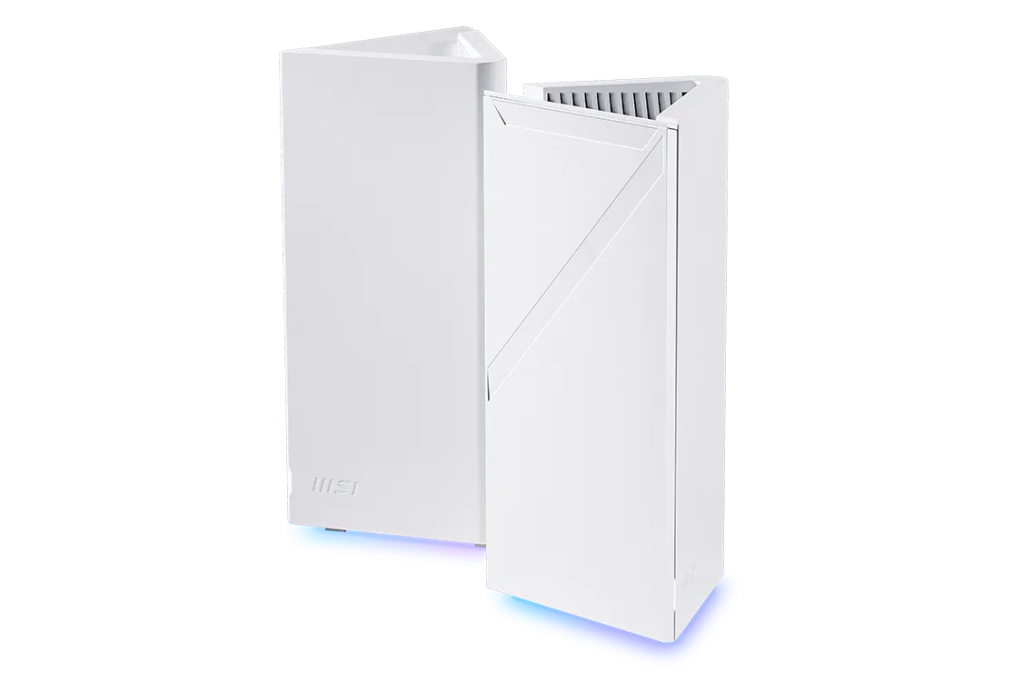
The MSI Roamii BE Pro (MRBE110) is a tri-band Wi-Fi 7 mesh router system designed to replace a single-router setup with a mesh network (a multi-node system). Instead of relying on one router to push signal through every wall and floor, a mesh system uses multiple units (nodes) working together, helping to improve coverage consistency across larger areas.
As a Wi-Fi 7 mesh system, Roamii BE Pro supports advanced features like 320MHz channel width and 4K-QAM, which help improve efficiency and throughput when paired with compatible devices. Its 2.5G Ethernet ports also enable multi-gig wired backhaul, which can help maintain strong performance between mesh nodes in larger homes.
What problem it solves
Large homes often experience signal loss due to distance from the router, walls, floors, and structural materials, interference from nearby networks, and heavy device usage. Roamii BE Pro is designed to address:
– Dead zones in upstairs bedrooms or basements
– Inconsistent performance at the edge of coverage areas
– Congestion when multiple people stream, game, and work at once
Find WiFi Spot is a standout MSI feature offering guided node placement – getting this wrong is the top cause of poor Wi-Fi performance.
Why upgrade now?
Wi-Fi 7 is quickly becoming the new baseline, and the longer you put off upgrading the faster your network will become a bottleneck. Upgrading your router is one of the best ways to improve whole-home reliability, streaming consistency, gaming responsiveness, and multi-device stability.
Who it’s for
– Larger homes and multi-story layouts
– High device density environments
– Streaming, gaming, and remote work households
Who it’s not for
– Small apartments with limited coverage needs
– Buyers only upgrading one device
MSI Roamii BE Lite (MRBE50) – for fixing unstable connections in apartments and smaller homes
MSI
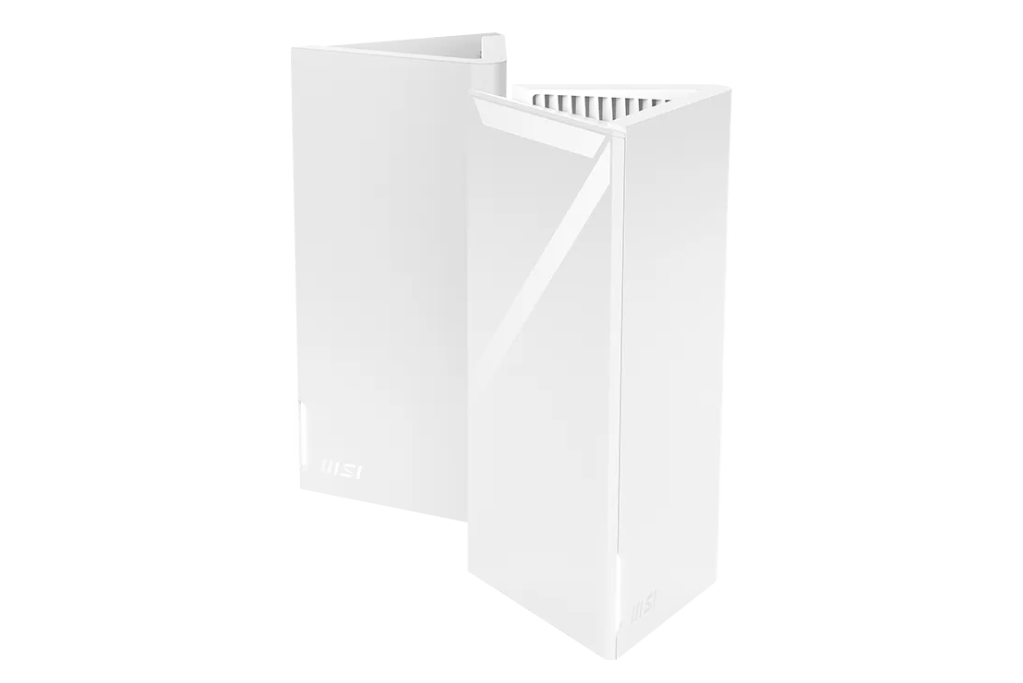
The MSI Roamii BE Lite (MRBE50) is a dual-band Wi-Fi 7 mesh system designed for smaller coverage areas while still delivering next-generation wireless features. It’s built for people who want Wi-Fi 7 benefits without investing in more hardware than they actually need.
Like other Wi-Fi 7 (802.11be) systems, Roamii BE Lite supports technologies such as 4K-QAM and wider channel bandwidth, which help improve performance in environments where many devices and neighboring networks compete for bandwidth.
What problem it solves
In apartments and condos, Wi-Fi problems are often caused by interference from neighboring networks, congestion during peak hours, and device density in small spaces. Roamii BE Lite helps to fix:
– Fluctuating speeds
– Video call instability
– Streaming interruptions
– Inconsistent performance between rooms
As with the Pro version, the Roamii BE Lite supports Find Wifi Spot, which uses real-time diagnostics to remove the guesswork from router placement, making Roamii one of the smartest mesh router product lines.
Why upgrade now?
If your Wi-Fi drops out or slows down at the exact moments you need it most, that’s usually a sign your current setup is already at its limit. A Wi-Fi 7 mesh system can help stabilize performance now – and stay relevant longer as more devices upgrade.
Who it’s for
– Apartments and smaller homes
– Families upgrading from Wi-Fi 5 or Wi-Fi 6
– Users seeking simplified Wi-Fi 7 adoption
Who it’s not for
– Very large homes where tri-band coverage is more beneficial
– Power users needing multi-gig wired connectivity
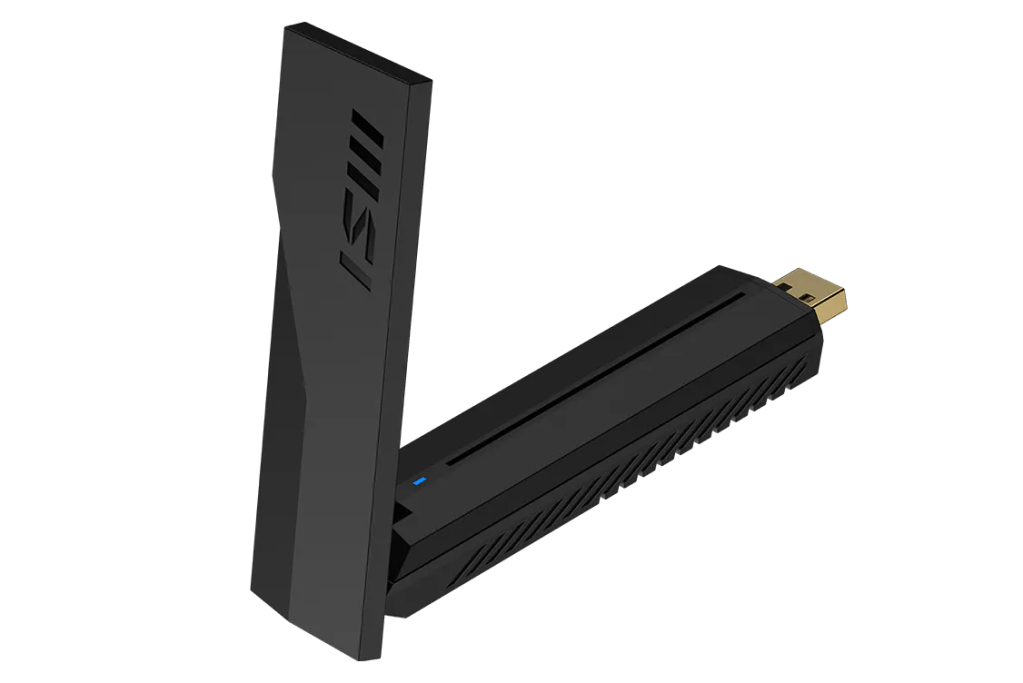
MSI BE6500 Wi-Fi 7 USB Adapter (GUBE65) – for adding Wi-Fi 7 to your laptop or PC via USB
MSI
The MSI BE6500 Wi-Fi 7 USB Adapter (GUBE65) is the world’s first plug-and-play Wi-Fi 7 USB dongle, letting you add Wi-Fi 7 support at an individual device level. It is an external network adapter that connects via USB, enabling compatible laptops and desktops to access Wi-Fi 7 without internal installation.
Note: to fully benefit from Wi-Fi 7 features such as 320MHz channel width and 4K-QAM, both the router and the client device must support the 802.11be standard.
What problem it solves
The wireless performance of many laptops remains limited by older Wi-Fi hardware even when the rest of the wireless system has been upgraded. This adapter is designed to help address:
– Slow laptop wireless speeds compared to other devices
– Instability during video conferencing
– Older Wi-Fi cards that can’t keep up with modern routers
Why upgrade now?
Wi-Fi is one of the most common hidden bottlenecks on otherwise perfectly capable laptops. A USB Wi-Fi 7 adapter is often the fastest way to modernize wireless performance, without replacing your computer.
Who it’s for
– Remote workers and students
– Users avoiding internal hardware installation
– Travelers who want a portable Wi-Fi upgrade
Who it’s not for
– Desktop builders seeking a fully internal solution
– Users outside supported operating systems
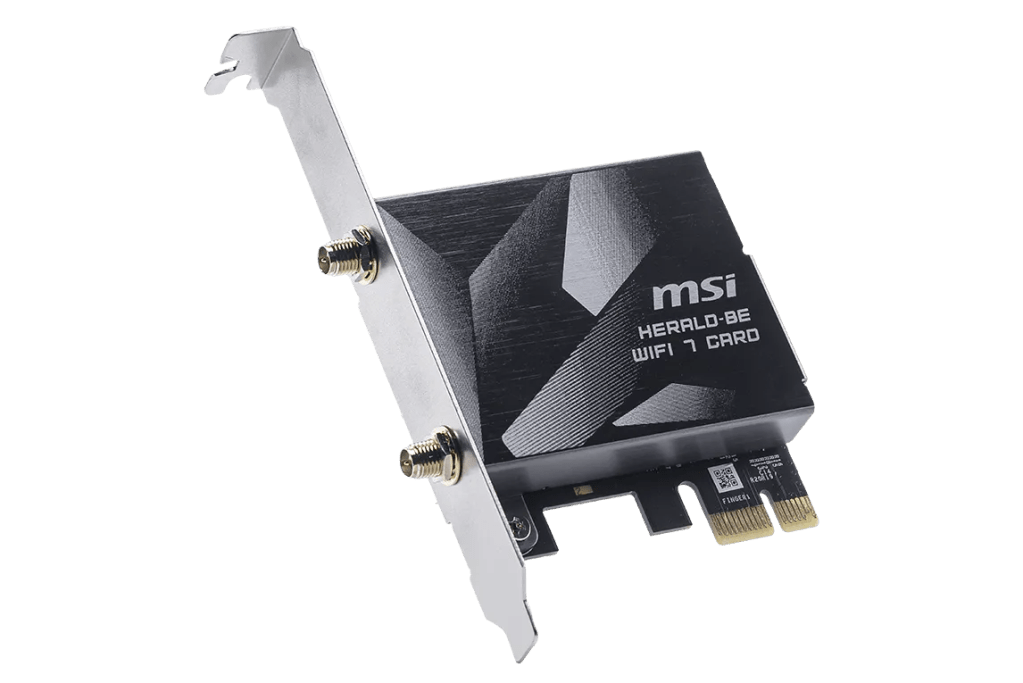
MSI Herald BE9400 Wi-Fi 7 PCIe Card – for adding Wi-Fi 7 to your desktop PC
MSI
The MSI Herald BE9400 Wi-Fi 7 PCIe Card is an internal Wi-Fi 7 network card for use in desktop PCs. Because it installs directly into a PCIe slot, it’s ideal for users who want a wireless upgrade without losing a USB port.
As a tri-band Wi-Fi 7 card supporting 2.4GHz, 5GHz, and 6GHz frequency bands, it enables compatible desktops to access the latest wireless features such as Multi-Link Operation (MLO) and improved efficiency under heavy network load (when multiple devices conntect at once). When paired with a Wi-Fi 7 router, it helps ensure the desktop can fully benefit from the network’s capabilities.
What problem it solves
Desktops are often the last devices in the home to run outdated wireless hardware, especially if they were built years ago. This card helps to fix:
– Lag during online gaming or streaming
– Unstable wireless performance under load
– Lack of modern Bluetooth support for peripherals
Why upgrade now?
If you’re upgrading your router to Wi-Fi 7, your desktop needs a Wi-Fi 7 client device to fully benefit from the stability improvements. A PCIe card is a long-term upgrade that can carry forward to future desktop builds.
Who it’s for
– Competitive gamers
– Content creators and streamers
– Desktop PC builders
Who it’s not for
– Laptop users
– Systems without available PCIe slots
Roamii BE Pro vs. Roamii BE Lite: What’s the difference?
| Feature | Roamii BE Lite (MRBE50) | Roamii BE Pro (MRBE110) |
|---|---|---|
| Wi-Fi Standard | Wi-Fi 7 (802.11be) | Wi-Fi 7 (802.11be) |
| Bands | Dual-band | Tri-band (includes 6GHz) |
| Antennas | 4 internal | 6 internal |
| Ethernet | Standard | 2.5G ports (x4) |
| Differentiator | Simplified Wi-Fi 7 mesh | Find WiFi Spot and tri-band capacity |
| Best For | Apartments/smaller homes | Large homes/heavy usage |
Which MSI Wi-Fi 7 product should you buy?
MSI’s Wi-Fi 7 solutions work as a complete ecosystem, with Roamii mesh systems improving whole-home coverage, and Wi-Fi 7 adapters allowing other incompatible computers to access faster wireless performance.
Choose Roamii BE Pro (MRBE110) if you need stronger whole-home coverage, tri-band Wi-Fi 7 support, and better performance in large homes with many connected devices. Its Find WiFi Spot feature (see video >>) helps you optimise performance through correct node placement, making this an idiot-proof Wi-Fi 7 upgrade solution for all users.
Choose Roamii BE Lite (MRBE50) if you want reliable Wi-Fi 7 mesh coverage in a smaller home or apartment and prefer a simpler dual-band setup – also with Find WiFi Spot.
Choose BE6500 Wi-Fi 7 USB Adapter (GUBE65) if you want a quick Wi-Fi 7 upgrade for a compatible laptop or desktop without having to open up your system and install components internally.
Choose Herald BE9400 Wi-Fi 7 PCIe Card if you’re upgrading a desktop PC and want internal Wi-Fi 7 performance plus Bluetooth 5.4 for peripherals.
FAQ
What is Wi-Fi 7 (802.11be)?
Wi-Fi 7 is the latest Wi-Fi standard. It’s designed to improve wireless performance in busy networks through features that increase efficiency, reduce congestion, and improve stability when multiple devices are connected at once.
What is a mesh Wi-Fi system?
A mesh Wi-Fi system uses multiple router units (called nodes) that work together as one network. This helps improve whole-home coverage and reduce dead zones compared to relying on a single router.
Do I need a Wi-Fi 7 router to benefit from a Wi-Fi 7 adapter?
Yes. To use Wi-Fi 7 features, both your router and your device must support Wi-Fi 7 (802.11be). A Wi-Fi 7 adapter can still be a useful upgrade, but the biggest benefits come when it’s paired with a Wi-Fi 7 router.
Will I see the “up to” speeds listed in specs?
Not usually. “Up to” speeds are theoretical maximums under ideal conditions. Real-world Wi-Fi performance depends on distance, walls, interference, and how many devices are connected at the same time.
What is Multi-Link Operation (MLO)?
Multi-Link Operation (MLO) is a Wi-Fi 7 feature that allows compatible devices to send and receive data across more than one Wi-Fi band. This can improve connection stability and reduce the impact of congestion, especially in busy households.
What is 320MHz channel width in Wi-Fi 7?
320MHz channel width is a Wi-Fi 7 capability that allows compatible routers and devices to use wider wireless channels than previous generations. In simple terms, wider channels can create more space for data transmission, which may improve throughput when network conditions allow.
What is 4K-QAM technology in Wi-Fi 7?
4K-QAM (4096-QAM) is a Wi-Fi 7 modulation technology that can encode more data into each signal transmission than earlier standards. In practical terms, it can improve efficiency and performance when signal quality is strong.
What is multi-gig backhaul in a mesh Wi-Fi system?
In a mesh Wi-Fi system, backhaul refers to the connection between the main router and the additional mesh nodes. If a system supports multi-gig Ethernet ports (such as 2.5G), it can use faster wired backhaul connections, which may help maintain stronger performance across larger homes.
Do I need 320MHz, 4K-QAM, or multi-gig ports to benefit from Wi-Fi 7?
Not necessarily. These features are part of Wi-Fi 7 and can improve performance in the right conditions, but the biggest benefits most users notice are improved stability under load, better multi-device handling, and more consistent coverage (especially with mesh systems).