

At a Glance
Expert's Rating
Pros
- Online and local backup
- Supports multiple PCs and devices on the same account
- Can back up Office 365, Google Workspace, and NAS
- Low price per terabyte
- Basic imaging and disaster recovery
Cons
- QNAP app install issues
- Needs better imaging and disaster recovery implementation
Our Verdict
iDrive has you covered six ways to Sunday when it comes to backup. Online, local, sync, NAS support, imaging, disaster recovery, online workspaces, snapshots, hard drive shipment… You name it, the company does it. It’s not the cheapest service our there, but it’s easily the most comprehensive.
Price When Reviewed
This value will show the geolocated pricing text for product undefined
Best Pricing Today
Best Prices Today: iDrive Online Cloud Backup
My latest look at iDrive’s online backup service offered nothing out of the ordinary. That’s a good thing, since the ordinary is that iDrive is the most comprehensive online backup and sharing service I’ve tested. And now it has even added backing up your online Office 365 and Google Workspace accounts as well as Synology and QNAP NAS boxes to its bag of tricks.
The company also provides additional storage at no extra charge for syncing all your devices and PCs, and allows sharing of files with anyone. Additionally, there’s now full-featured file and image backup to local media, as well as disaster recovery. Like I said: comprehensive.
That said, iDrive is not the cheapest service out there, it’s occasionally unintuitive, and some of the features are still works in progress — imaging and disaster recovery in particular. But when those are ironed out, iDrive will have a legitimate claim to best backup solution on the planet. Online or otherwise.
Read on to learn more, then see our roundup of the best online backup services for comparison.
How much does iDrive cost?
Believe it or not, iDrive still offers a free storage plan — 10GB. Nice. Beyond that, the price per terabyte is fetching, at least initially.
You can see the basic end-user plans for iDrive in the image below, and get the full low-down here. However, the prices in large text are for the first year only — the struck-through prices commence after that. For example, the first year of the Personal plan is $69.65, or the first two years for $149.25, then increases to $99.50 per annum after that.
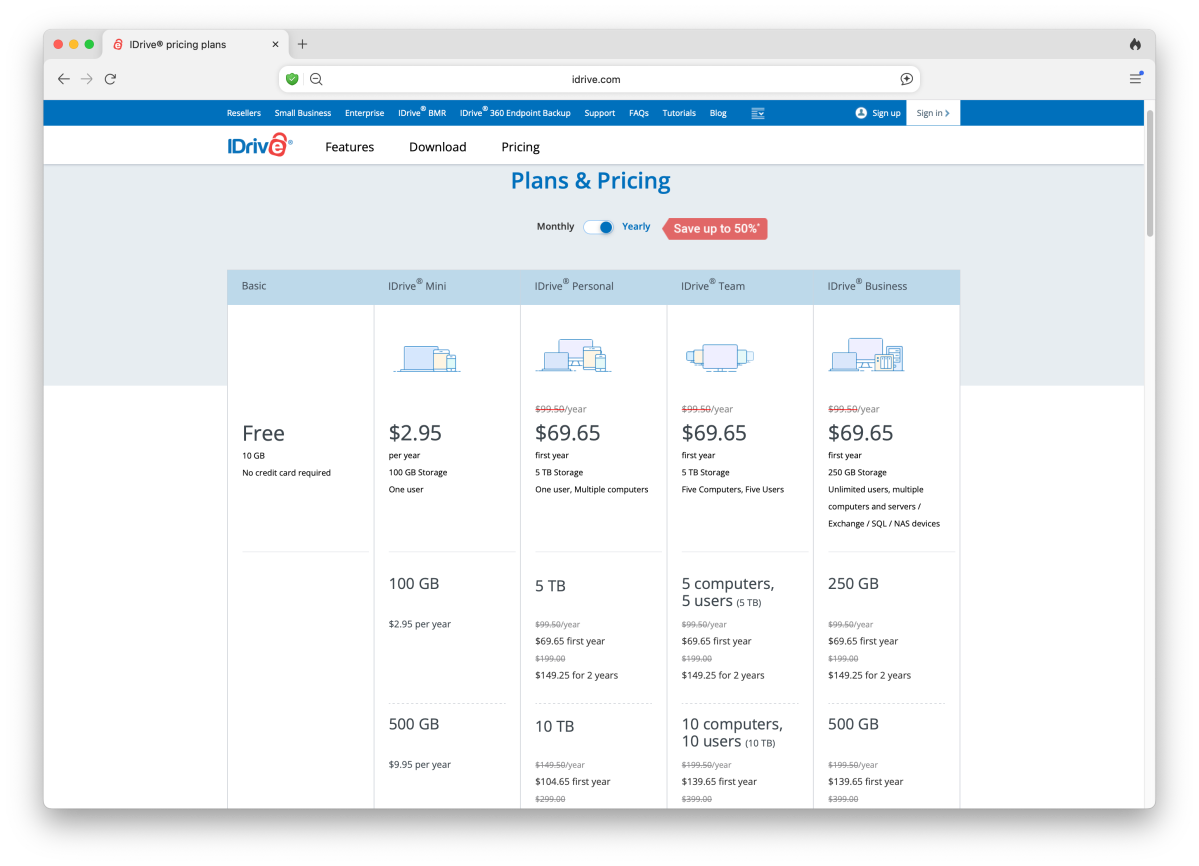
Per terabyte, all those plans are affordable, but don’t get caught up in the price-per-terabyte game: The size of your essential data repository is probably a lot smaller than what’s being offered by iDrive. Unless, of course, you’re into high-resolution video or the like. Then 5TB may not be nearly enough.
If you enable the separate sync service (Cloud Drive), you get an equal amount of storage just for that task — gratis. Cool.
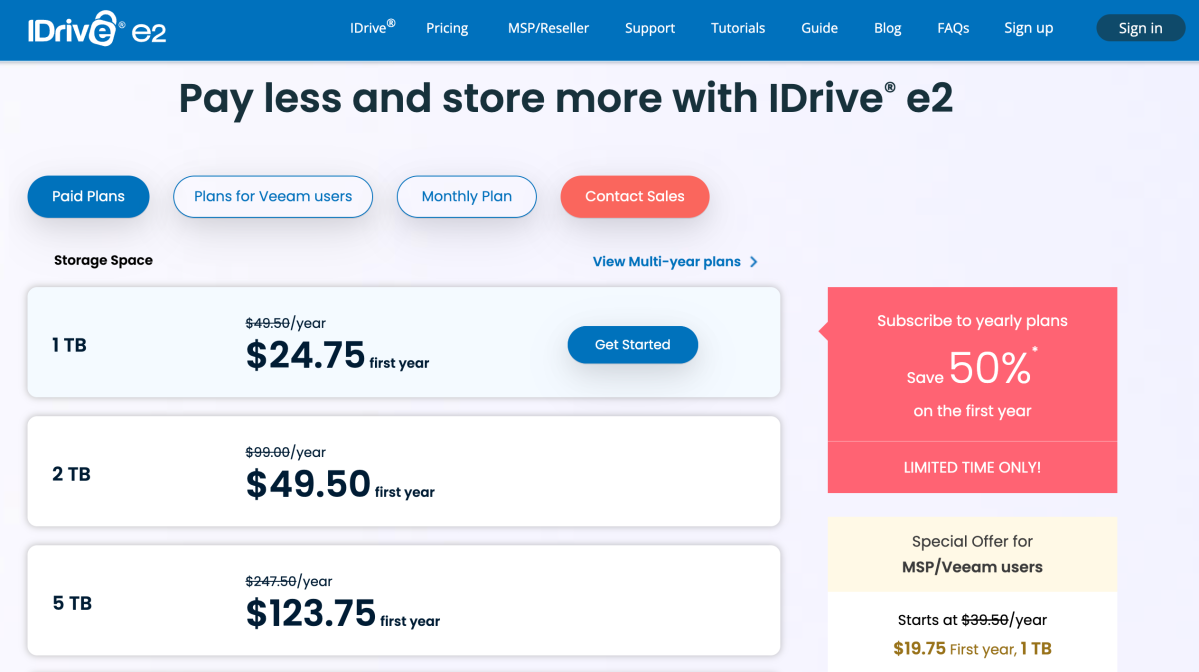
For plain-Jane storage without all the bells and whistles, there’s a separate S3-compatible object storage service called e2. It starts at only $24.95 for 1TB — again for the first year, then $49.95 per annum subsequently.
If you want better, more reliable imaging capabilities, iDrive Mirror (still in beta), is available for $20 more a year per computer. Not bad, though we’d prefer they fixed the bundled imaging which proved a tad problematic.
What are iDrive’s features?
iDrive is split among two main functionalities: file backup and file sync, the latter operating as the aforementioned Cloud Drive, which functions like OneDrive, Google Drive, Dropbox, etc., with a local folder that syncs to the cloud. If you’re confused as to the difference between backup and sync, consider this:
- A backup is an immutable or cataloged snapshot of your data at a point of time (iDrive stores up to 30 versions of any changed file).
- Synced data (Cloud Drive) is one malleable set of data shared across multiple devices, with any of those devices able to add, delete, rename, and otherwise alter the data set. Changes are then propagated to the other devices.
iDrive supports nearly every type of PC and device: Windows, OS X, Android, iOS, and various NAS boxes. Also nice are the snapshots, which make it easy to restore your PC to a particular point in time.
Like competitor Carbonite, iDrive offers continuous data protection (CDP) in addition to traditional scheduling. If you have a rapidly changing data set, it’s nice to have files backed up as they change, not just periodically.
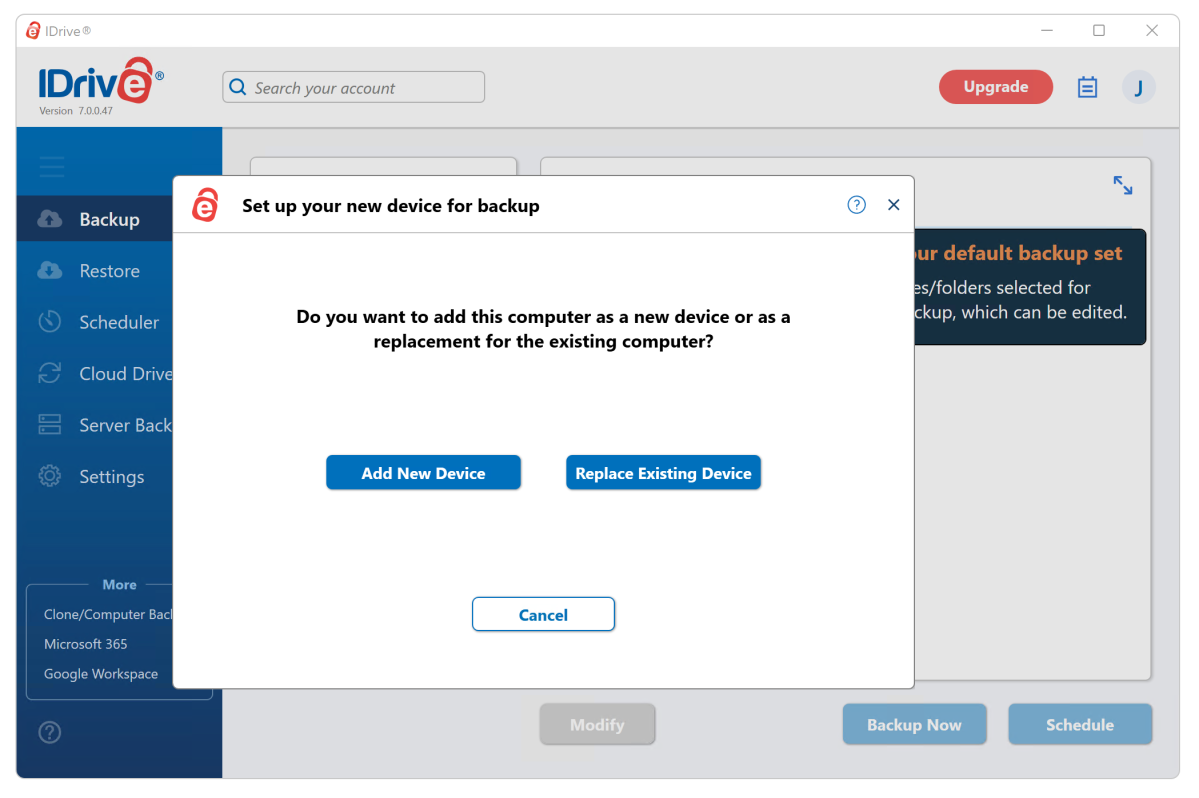
Unlike my last look, local and online backup are now separate jobs. Formerly the local backup was simply a duplicate of the online. Separate is obviously more versatile and allows you to keep large files locally but not online, though it’s not as simple or foolproof. An option to use the same data set might be useful.
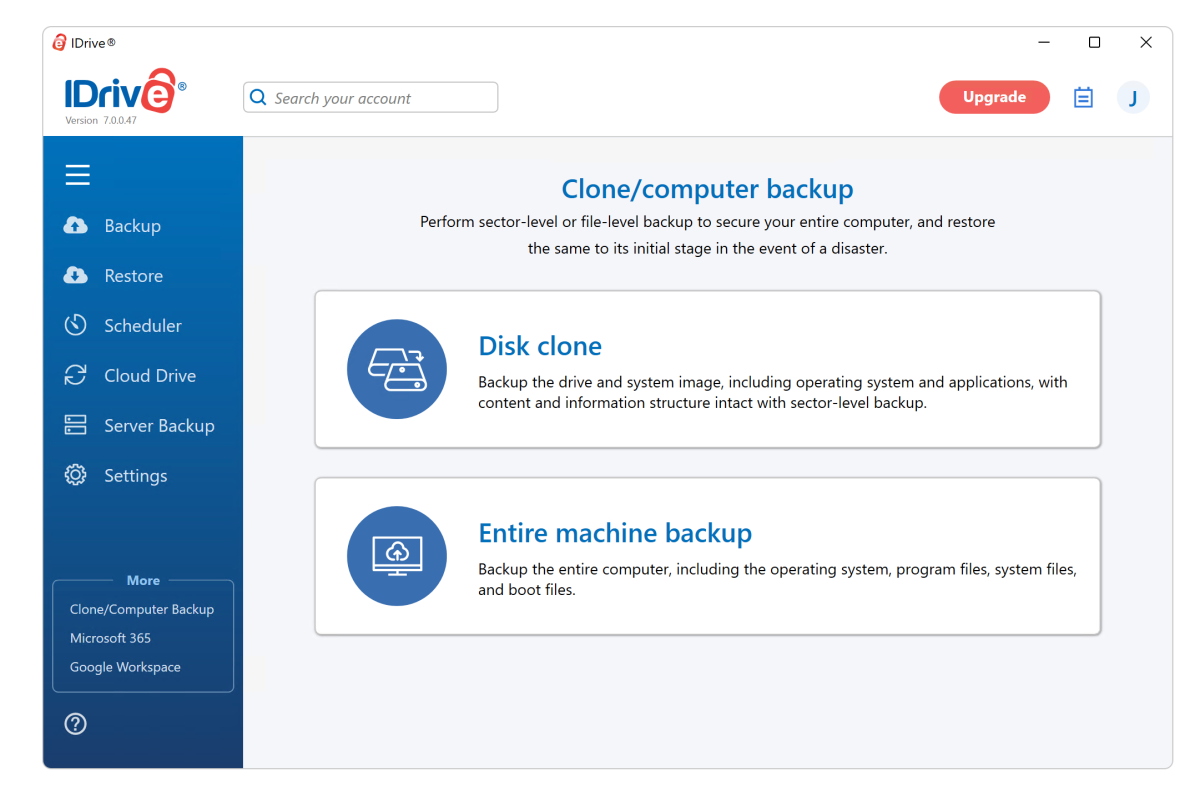
Also separate are the “Entire Machine Backup” and “Disk Clone.” The former is file-level backup of your entire system, while the other is imaging — several types of it.
iDrive also features iDrive Express, a two-way hardware shipping service. Say you’re walled off from the internet, or just in a very low-bandwidth location. Use iDrive’s local backup function to back up your data to a storage device provided by the company, then ship it to them. It will get uploaded to your online account, and then updated by your local client thereafter. If you need to restore a very large backup, iDrive will ship your data to you on an appropriate device. All within a week’s time.
Non-corporate customers can get 3TB of data delivered via Express to or from iDrive for free — the first time. Team and Business users get three free deliveries. Subsequently, there’s a $60 charge per delivery.
As mentioned above, the new iDrive Mirror fixes some of our complaints about the imaging and disaster recovery. It uses a separate client (why?) and skips unused sectors to keep file size down. Cool, but we’d really like to see iDrive consolidate all this functionality into the main client.
How easy is it to use iDrive?
When it comes to basic file backup and sync, iDrive is simple enough to use. Even if the interface sometimes seems more intent on catchy names such as “Cloud Drive” rather than intuitive labels such as “Sync your data.”
Conveniently, iDrive automatically select the data locations that most likely require backup, and you can easily add other locations, including those on your local network.
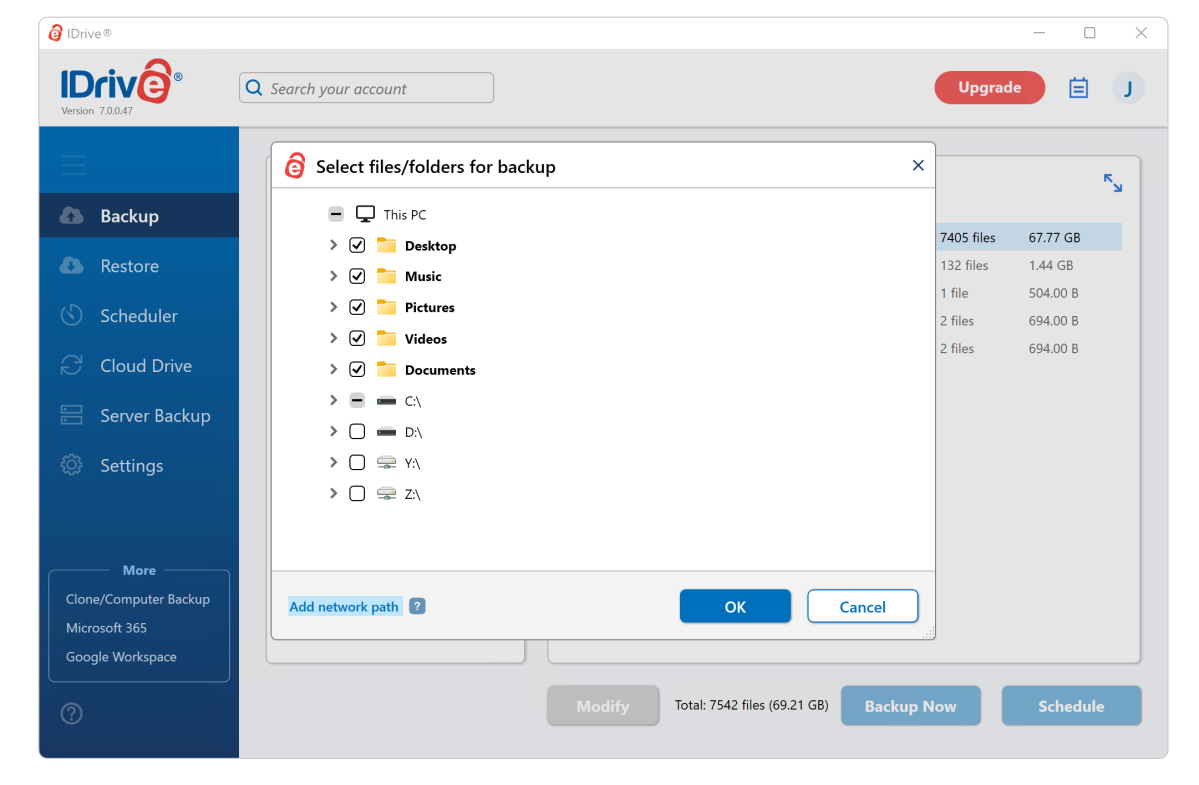
Where the program gets a bit dicey in the ease-of-use department is with imaging and disaster recovery. But before I nitpick, kudos to iDrive for even including those. Not a lot of online backup vendors do. Actually, no others that I can think of.
My first nit is that imaging and disaster recovery should be in the backup section, not “More.” Then again, given the current clunkiness, that’s likely deliberate and probably a good thing.
When I say clunky, I mean that the “System Image” function enumerates disks by number without telling you which is actually the system disk. You have to check in Windows Disk Management to see which is which if you don’t already know. Note that 0 may not be your system disk.
If you’re not familiar with Disk Management, right-click on the Windows Logo on the Taskbar, then scroll up and select it.
The System Image also creates needlessly huge images because it backs up all sectors including those that contain no data. Including these empty sectors (which may be listed as not in use, but still contain old or deleted data) is generally an option for data recovery where you might need to recover accidentally deleted files.
Not a lot of online backup services offer imaging and disaster recovery. Kudos to iDrive for including those.
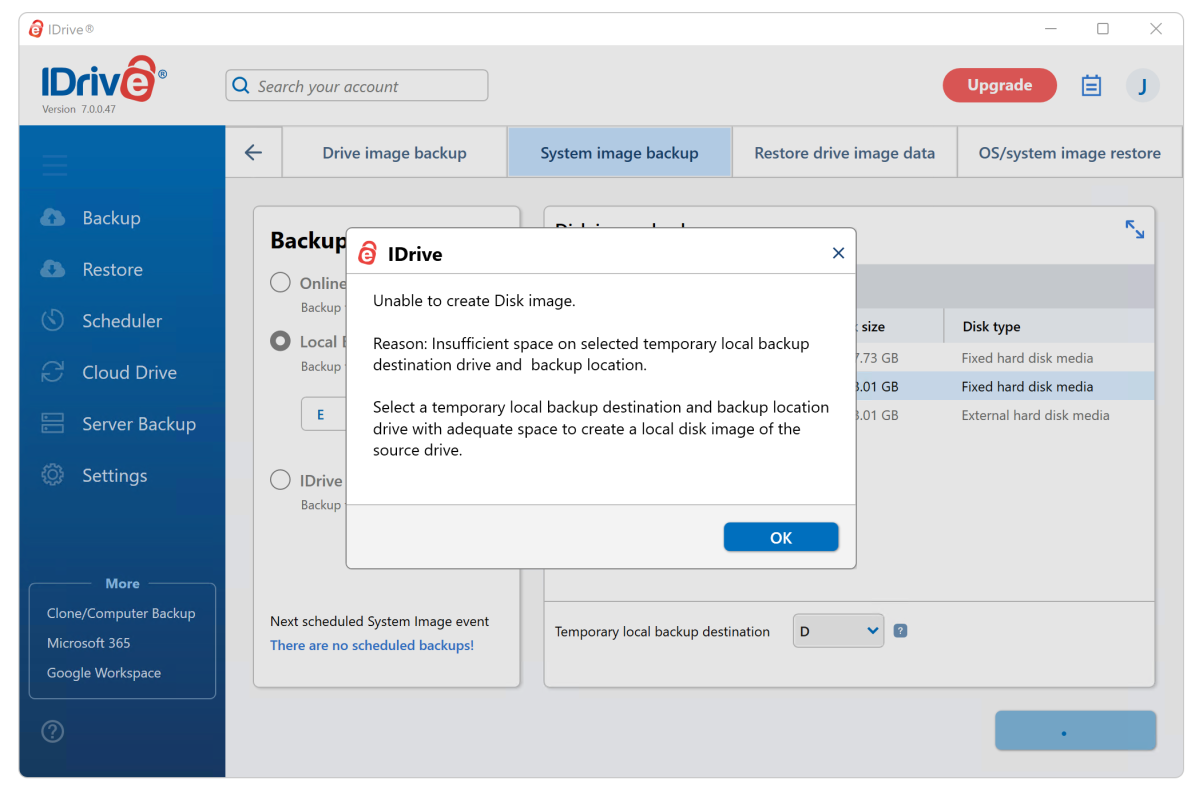
The practical problem backing up empty sectors presented me with is that my 2TB system disk with only 250GB of data couldn’t be backed up to a 2TB SSD. Yikes. I switched to a 4TB disk for testing, but I’d recommend Macrium Reflect Free in lieu of iDrive’s imaging at this point in time.
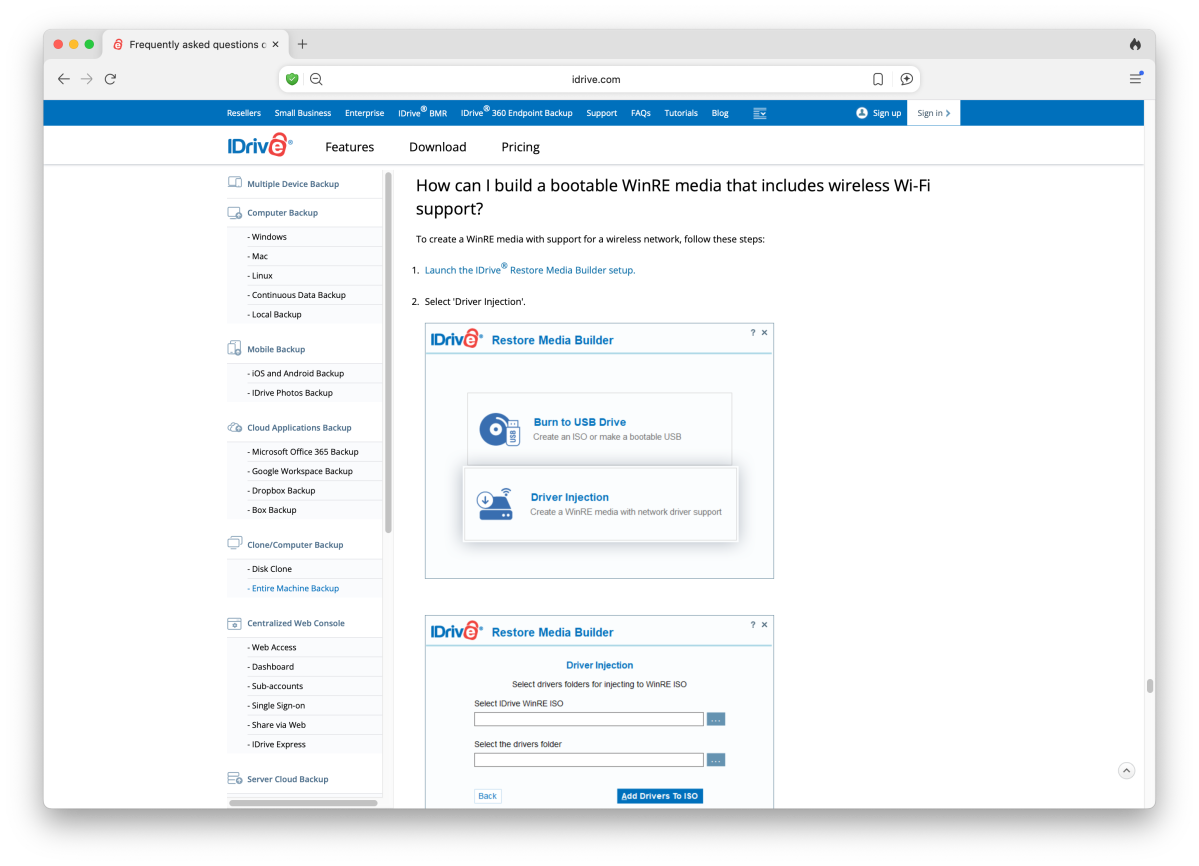
Also, you’re obviously going to need a recovery disk to restore an image if your system goes belly up, but I found nothing to indicate that this creating one was possible with the iDrive client. PR sent me this link but for goodness sakes, fold it into the client software.
Reiterating, for its basic backup mission, iDrive is easy to use after only a little study. But there are definitely some rough edges in the advanced features that could use smoothing out.
How does iDrive perform?
The majority of my experience with iDrive was operationally successful. There was one error (a file that couldn’t be backed up because it was on the destination drive), but that falls under the heading of user stupidity. Me being the user.
I also ran into an issue where the iDrive app in the QNAP app store wouldn’t successfully install. This is actually a non-issue as QNAP’s Hybrid Backup/Sync (HBS3) program supports iDrive as a destination for its operations. But it’s sloppy and iDrive should have QNAP remove the app.
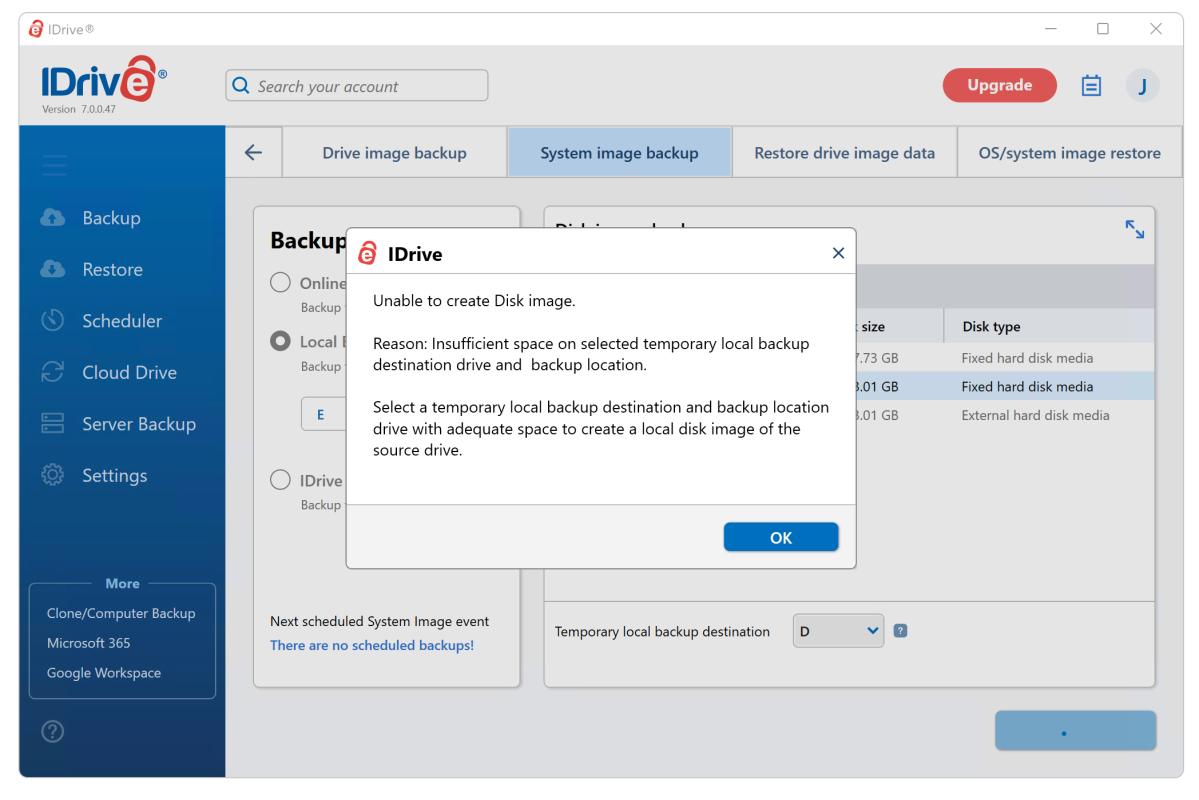
The aforementioned inability to back up a drive with 250GB of data to a 2TB external drive was the only other issue. Please make “only used sectors” the default, iDrive!
It’s generally hard to gauge the speed of an online service, as it varies with the infrastructure between your computer and the company’s servers. By and large, however, iDrive performed in line within the bandwidth of the internal NVMe, external 20Gbps USB, and my 2.5Gbps local network I used for testing.
Lest my minor complaints point you in the wrong direction. Yes, there is a bit of sloppiness in the interface, but iDrive performed quite well overall. As expected.
Should you use iDrive’s backup service?
Yes! I nitpicked quite a bit in this review. But my complaints are just that — nits. iDrive works well and offers the most comprehensive set of backup and backup-related features of any online service I’ve tested — by far. And they’re all available at the basic subscription level. Take a look if you haven’t already.
For more about data backup, see our roundup of the best Windows backup software.
Editor’s note: Because online services are often iterative, gaining new features and performance improvements over time, this review is subject to change in order to accurately reflect the current state of the service. Any changes to text or our final review verdict will be noted at the top of this article.
This article was edited on September 16th, 2025 to add discussion about iDrive Mirror and edited again on January 16th, 2026 for grammar and readability.